An Instagram audio ringtone is simply a sound from a Reel that you set as your phone's ringtone. Instagram does not give you a button for this. But there is a simple workaround. Download your desired audio, trim it, and set it as your phone's ringtone.
On Android, you can do it with just your browser and your settings. But on iPhone, there is one extra step in GarageBand. It takes a few minutes. This guide covers all of it, step by step on both phones.
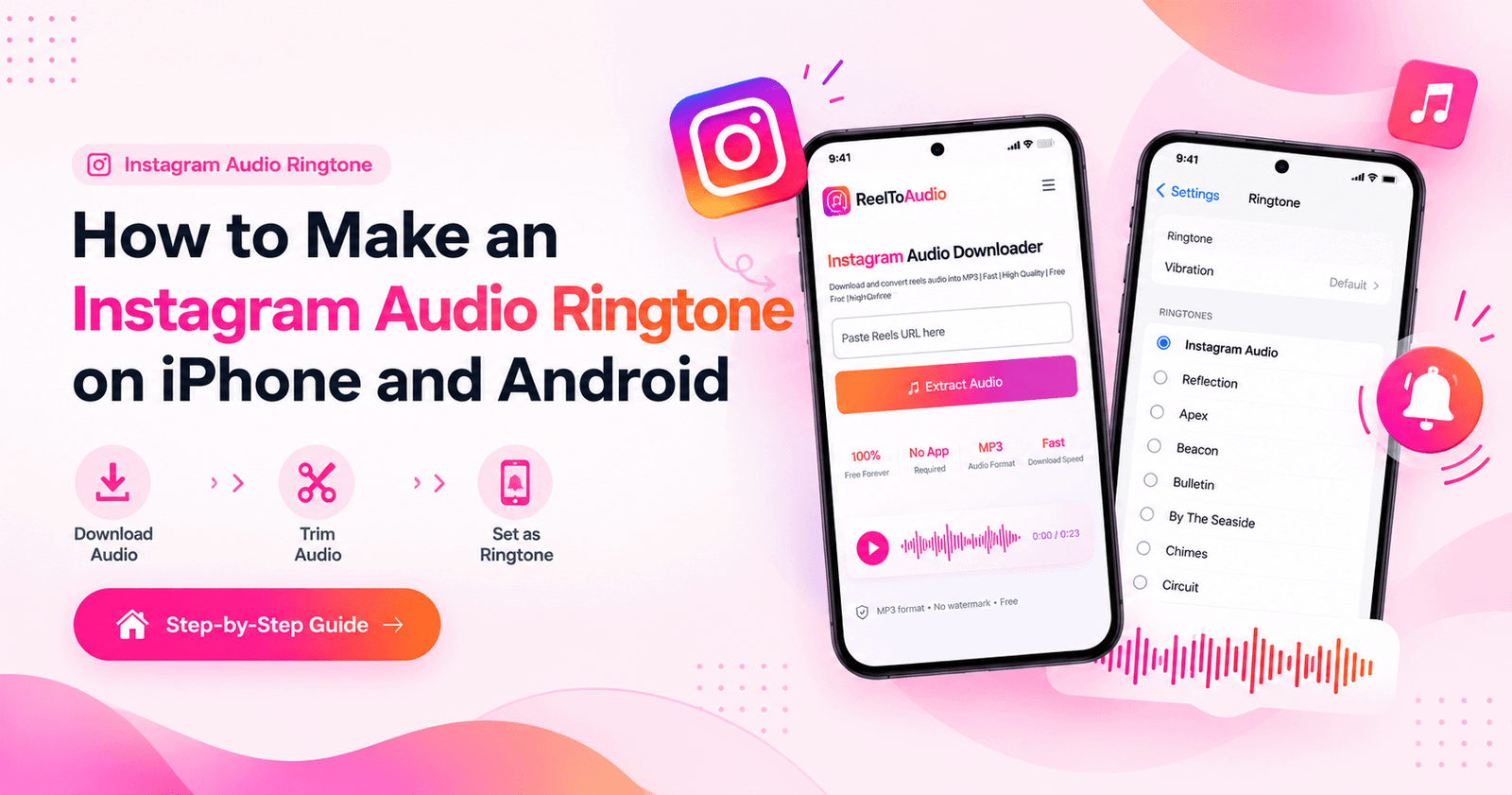
Before anything else, you need the actual audio file on your phone. Instagram has no built-in button for downloading audio, so you will use a free online tool to extract it.
Open the Reel you like, then tap the Share icon. Select Copy link from the available options. Always make sure you have copied a complete URL.
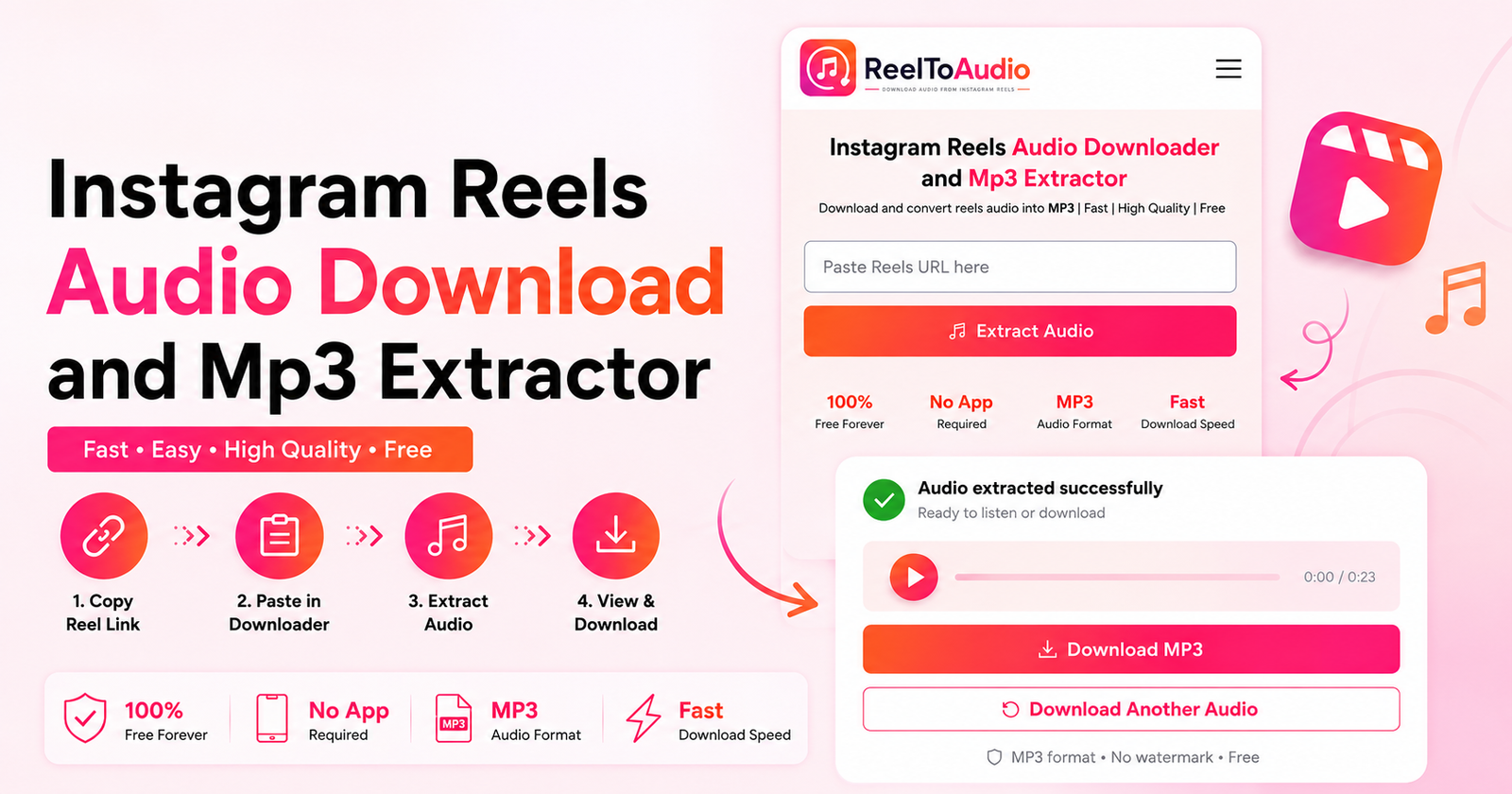
Open your browser and visit ReelToAudio. Now paste the copied Instagram Reel link into the input box. Start the conversion process. Select the available MP3 download option. The tool processes supported public Reel links to extract the audio.
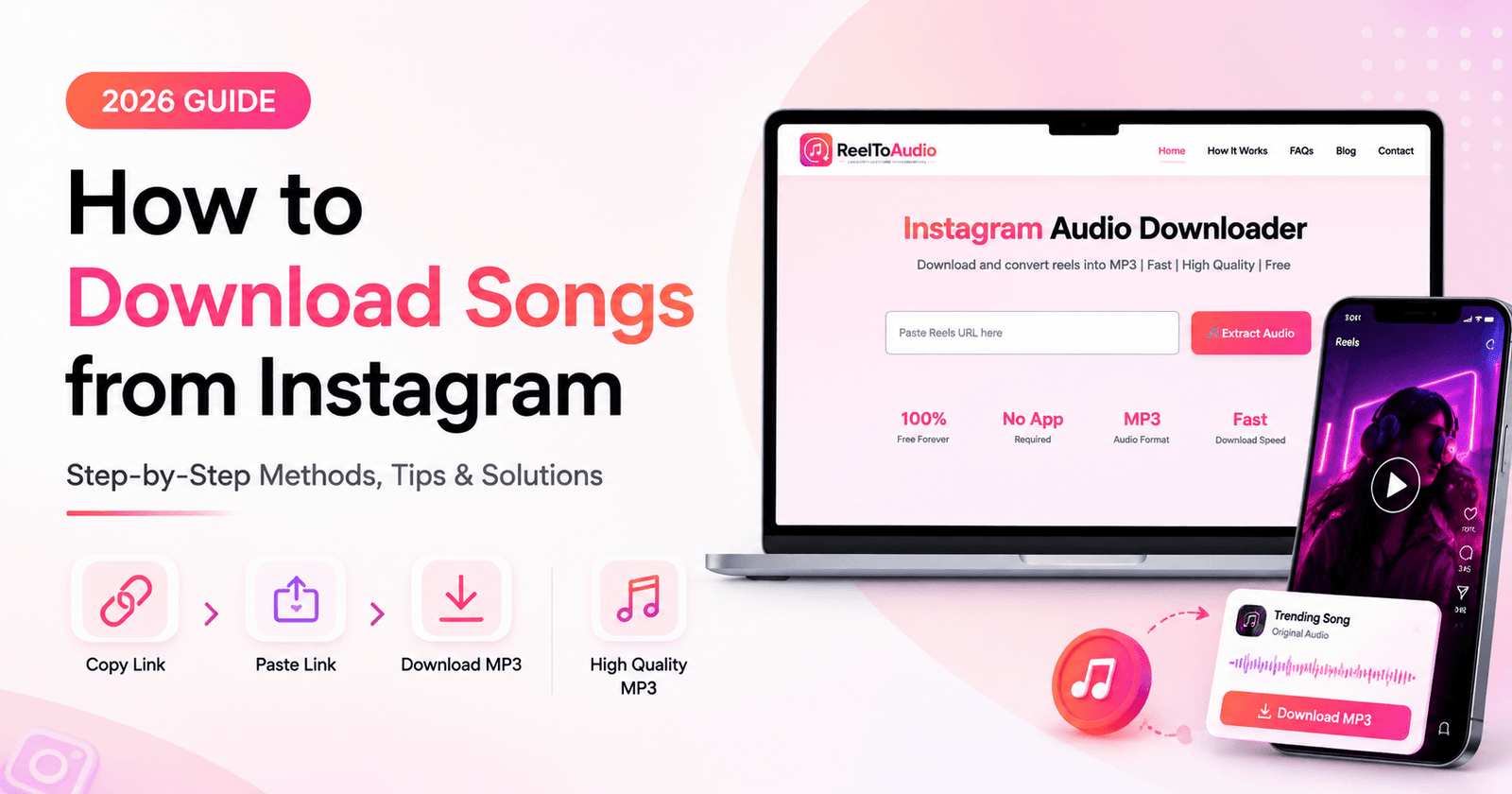
Select your format and download. The file saves straight to your phone, usually in the Downloads folder, and this file becomes your Instagram audio ringtone once trimmed and set. If you want the detailed walkthrough with screenshots of each step, see our step-by-step Instagram song download guide.
A full reel's audio is too long to set as a ringtone because most phones play only the first 30 seconds, so trimming is the best option to make it sound right.
First, select the part of the audio you want to hear every time your phone rings. If you are starting with a popular sound, browse trending Instagram sounds first for ideas, since trending audio tends to make the most recognizable and best Instagram audio ringtone.
On Android, you need a free audio trimmer or your phone's built-in editor to cut your specific part. On iPhone, you can do this inside GarageBand. But if you want the whole audio to be set as a ringtone, you can skip this part as well.
When you think you are done with your final audio cut, save the file to your device. Keep the original full-length download too, in case you want to pick a different section for your Instagram audio ringtone later.
Setting an Instagram audio as a ringtone on Android only needs three simple steps:
On Android, open your files app, go to Downloads, and look for your downloaded file. If the file does not appear there, check whether your download is finished or not, then look again.
Now open your phone's settings, go to the “Sound and vibration” option, and then tap “Ringtone.”
Your Instagram audio ringtone file should now appear in the list. Select it, and it's done.
When you're all set, call your phone from another device to hear your new Instagram audio ringtone in action.
The iPhone needs one extra step through GarageBand, which is free and made by Apple. It sounds like work, but it only takes a few minutes.
Follow all of the above steps in Safari to download the Instagram audio. When the file is downloaded, save it to the Files app.
Now open GarageBand on your iPhone and start a new project. Then tap on the Tracks view (a brick-like icon) and then the Loop icon. After that, tap Files and choose Browse items from the Files app. Now drag your downloaded file here.
To trim your audio clip, tap the audio clip on the timeline. Yellow handles will appear on both ends. Drag them inward to cut the clip. Keep the best 30 seconds. That is all a ringtone needs. Now just tap play to check how it sounds.
To export the Clip as a Ringtone, tap the down arrow at the top left corner. Then choose “My Songs,” and your project gets saved. Long-press the project icon. Then tap the Share icon, and choose Ringtone. Give it a name you will recognize. Tap Export. Your Instagram audio ringtone is now on your iPhone.
Open your iPhone Settings. Then go to the “Sounds and Haptics” option. Tap Ringtone. Now your new ringtone will show at the top of the list. Tap it, and that is your ringtone now.
When you download Instagram audio, you will usually get a choice between MP3 and M4A. Both can become a great Instagram audio ringtone, but they fit different workflows.
MP3 works on almost every device. Android, iPhone, and laptops. It is the simplest pick for an Instagram audio ringtone. Smaller file, easy to move around.
M4A is Apple's own audio format. It pairs naturally with GarageBand and the iPhone. If you do everything on iPhone, M4A keeps it smooth. ReelToAudio gives you both MP3 and M4A, so you can choose.
For Android, go with MP3. For iPhone, either format works since GarageBand imports both without trouble. If you want the deeper technical breakdown, check out our Instagram MP3 guide. One thing to remember: the format does not improve the audio quality. An Instagram audio ringtone can only sound as good as the original Reel audio.
If your Instagram audio ringtone is not working, it is almost always one of these four issues. Each has a quick fix.
Maybe your downloaded audio is missing, so open your Files app. Check the Downloads folder first. If not there? Then the download probably did not finish.
Go back, paste the link again, and wait for the confirmation this time.
Sometimes, a three-minute file will not work as a ringtone. Your phone may cut it off after a few seconds anyway. Trim it down to 30 seconds or less, then try again.
Usually, GarageBand cannot see the file. Make sure the audio is saved in the Files app.
Safari's download list is not enough. It has to be in Files. If still not working? Download it once more and try again.
First, check your silent mode. Then check your phone's volume. If both are fine? Then the downloaded file itself may be broken.
Run through our Instagram sound not working fixes to rule out a bad download before you start over.
Ready to try it? Grab any Reel audio with the free ReelToAudio downloader and turn your favorite sound into your ringtone today.
Download Reel AudioCopy the Reel link from Instagram. Paste it into ReelToAudio in your browser. Download the file. That is your Instagram audio ringtone file, ready to trim.
Copy the Reel link from Instagram. Paste it into ReelToAudio in your browser. Download the file. That is your Instagram audio ringtone file, ready to trim.
Yes, just download the audio and open it in GarageBand, trim it, and export it as a ringtone.
On Android, yes. You only need your browser to download the audio and your phone's built-in settings to set it as a ringtone. On iPhone, you need GarageBand, which comes free from Apple, but no third-party app is required on either platform.