Most of the time, you hear a sound on a Reel, and you want just that sound. You do not want the whole video, and you do not want a name written on top of it. You also do not want to install a new app only for one sound, so basically this page is about that one thing.
An audio file has no picture in it, so it cannot carry a visual watermark. That is the first thing to get clear. When people say they want audio without a watermark, they usually mean one of two things, and both are simple once you see them.
When you save a Reel from Instagram itself, the video often comes with the creator username written on it. That mark sits on the picture, and it is not on the sound. If you only need the sound, you do not need that video file at all. ReelToAudio pulls out just the audio track, so the video mark never comes with it, and the file you get is only sound.
On the other hand, some downloaders add their own sound to your file, and you hear a short voice at the start, or a small jingle before the real sound begins, and that is what people call an audio tag. A clean download has no added voice and no added jingle, it starts with the Reel sound itself.
No, you do not need a store app to download Instagram audio, and that is the short answer. ReelToAudio works in your browser on iPhone, Android, and desktop; just open the site, paste the link, and download the audio. Nothing to install, and it doesn't take up phone storage like a store app does.
ReelToAudio asks for no login or sign-up; you do not make an account, and you do not give the tool your Instagram details, and it works with public Reel links only, and if a Reel is private, the tool cannot reach it. Full device steps are in the Instagram MP3 guide.
A downloader never needs your Instagram password to save audio from a public Reel, because the link points to a post that anyone can already see. There is no reason to type a password anywhere, and if any screen asks for your Instagram login before a download, stop there, because your password belongs only in the Instagram app, and ReelToAudio never asks for it
You can add ReelToAudio onto your screen and tap its icon to open it, just like an app, and it does not come from a store, and it does not need a store update either. The icon stays on your home screen until you remove it, and in this way you do not have to type the address each time you want to download Reel audio.
Open Safari and go to reeltoaudio.com, and tap the Share button at the bottom of the screen, and scroll down and tap Add to Home Screen, and then tap Add, and the ReelToAudio icon will now sit on your home screen, and you can tap it any time, and you can tap the icon any time you want to download Reel audio.
Open Chrome and go to reeltoaudio.com, and tap the three dots in the top right corner, and tap Add to Home screen, and then tap Add again if your phone asks you to confirm, and the ReelToAudio icon will now sit on your home screen, and you can tap it any time, and you can tap the icon any time you want to download Reel audio.
You only need three short steps to get a clean file, and the full guide is in the Instagram MP3 guide, and this part stays short
A clean file is easy to check, and the check takes less than a minute, so do it once before you use the sound in a video or a ringtone, and a clean file also makes a better Instagram audio ringtone because no extra sound plays at the start
Play the file from the start, and the first two seconds should be the Reel sound itself, and not a voice or a jingle, and then jump to the last two seconds, and if you hear an added voice at either end, the file is not clean
Open the file from your Files app or Downloads folder, and not only from a browser preview, because a real saved file opens in your music player and shows its name and length, and if you cannot find it in your files, it may not have saved at all
You do not need a store app to do this job, and a browser tool on your home screen already does it, so stay away from two warning signs and keep it simple
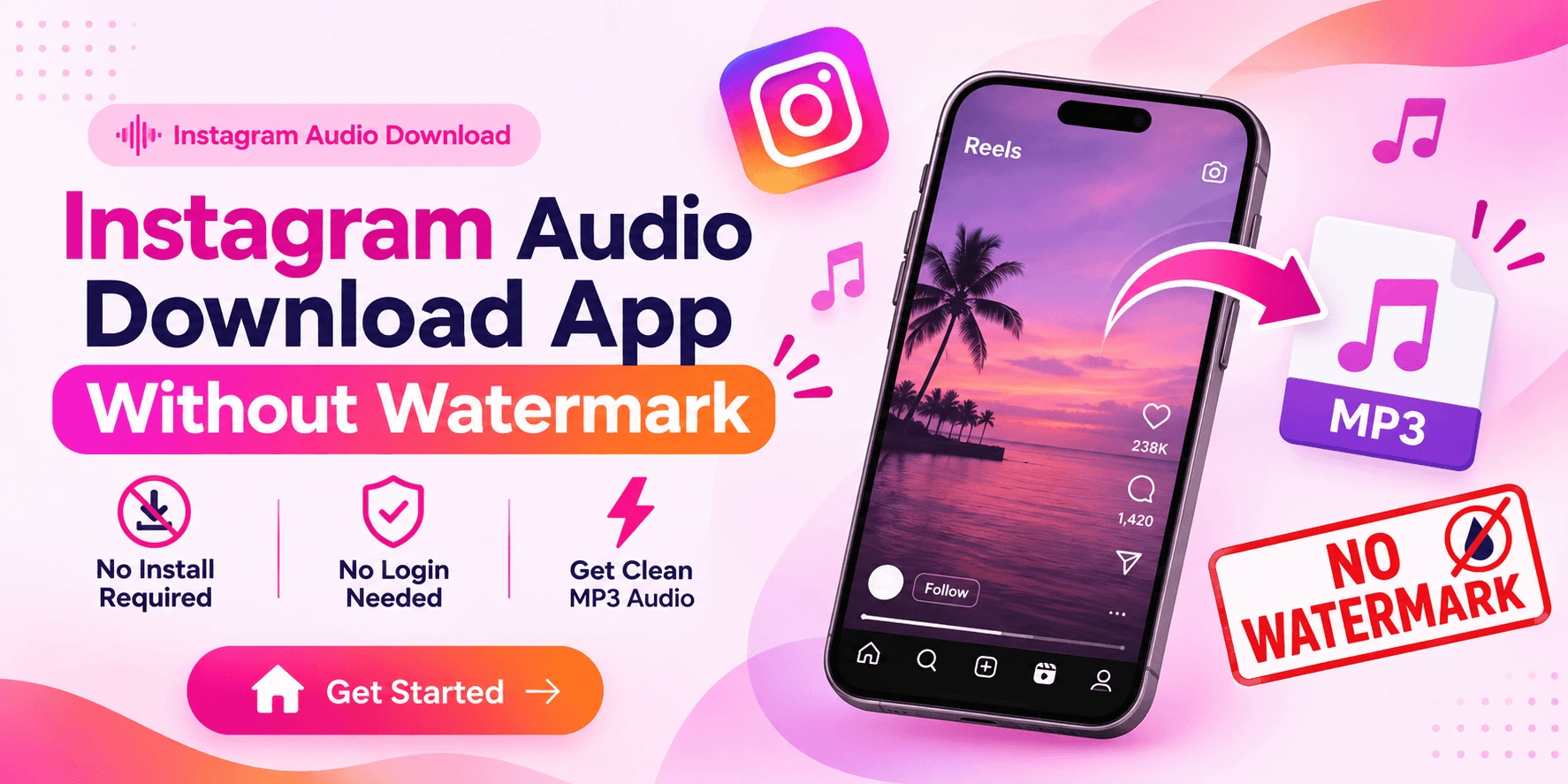
Without watermark means two things for Instagram audio, and no video mark comes with the file, and no added voice sits at the start of it, and you do not need a store app for that, add ReelToAudio to your home screen, paste a public Reel link, and download a clean MP3 file with no login, and that is the whole job.